Most WordPress sites don’t go down because of a hacker. They go down because of a plugin update at 11pm, a theme change that white-screened the homepage, or a server that quietly failed overnight. The disaster is rarely dramatic — but the recovery almost always is, because that’s the moment people discover their backup isn’t what they thought it was.
WordPress disaster recovery is your plan for getting a broken site back online quickly and completely — ideally in minutes, without losing data. A backup is only the first half of that plan. The half that actually matters is whether you can restore it when everything else has gone wrong.
Here’s how to make sure you can.
“But my host backs up my site” — why that usually isn’t enough
This is the most expensive assumption in WordPress. Host backups exist, but they’re built to protect the host’s infrastructure, not your specific site. In practice, relying on them alone tends to fail in four ways:
⚠️ The most expensive assumption in WordPress
Host backups are built to protect the host’s infrastructure — not your specific site. Relying on them alone tends to fail in four predictable ways.
- They live on the same server as your site. If the server is the thing that failed, your backup can go down with it. A backup that shares a fate with the original isn’t really a backup.
- The retention window is short. Many hosts keep only a day or two. If a problem started last week and you only noticed today, the clean version may already be gone.
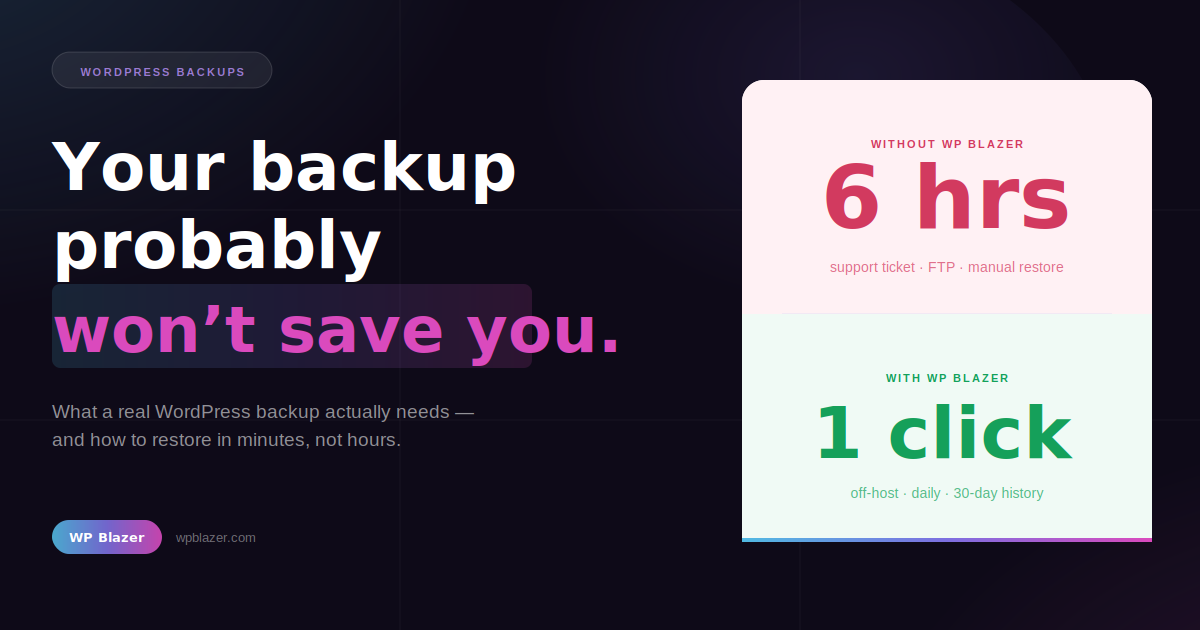
- Restoring is slow and out of your hands. “Open a support ticket and wait” is not a recovery plan when your store is down during a sale.
- They’re rarely tested. A backup nobody has ever restored is a guess. You find out whether it works on the worst possible day to find out.
None of this means your host is doing anything wrong. It just means their backup is a safety net for them — not a recovery plan for you.
The 3-2-1 rule for WordPress
The simplest framework for getting this right comes from IT, and it’s saved more websites than any plugin:
- 3 copies of your site
- 2 different types of storage
- 1 copy kept off-site — somewhere completely separate from your host ← this is the one most people miss
That last “1” is where most WordPress owners come up short. Their only copy sits on the same server as the live site, which means a single server failure takes both. Move one copy off-host and you’ve eliminated the single most common way people lose everything at once.
What a reliable WordPress backup actually needs
If you only remember one section, make it this one. A backup you can depend on has four traits — and missing even one means the others won’t save you:
- ☁️ Off-host. Stored somewhere your server can’t take down with it.
- 🔁 Automatic and daily. Manual backups are the ones you forget right before you need them. The cadence should run on its own.
- 📅 Kept for weeks, not hours. Long retention lets you roll back past a problem you didn’t catch yesterday — a slow malware issue, a bad change, a corrupted database.
- ⚡ Restorable in one click. If getting your site back means FTP, a database import, and a tutorial, you don’t have a recovery plan — you have homework for your worst day.
Miss any one of these and the others won’t save you. Off-host but manual? You’ll forget it. Automatic but on the same server? It dies with the site. Daily and off-host but impossible to restore? You’ll be reading documentation while your site is down.
How to restore a WordPress site (the short version)
When a site breaks, the recovery path should look like this:
- Stay calm and don’t “fix” live. Trying random changes on a broken production site usually makes the cleanup harder.
- Identify the last known-good point. This is where retention matters — you want a copy from before the problem started, not after.
- Restore from an off-host backup. Roll the whole site — files and database together — back to that point.
- Verify, then re-apply carefully. Confirm the site is healthy, then redo the change that broke it one step at a time so you can catch the culprit.
With the right setup, steps 2–4 are a single action. With the wrong setup, they’re a stressful afternoon. The difference is entirely in how you backed up before anything went wrong.
How often should you back up?
It depends on how often your site changes. The honest rule: back up at least as often as you’d be willing to redo the work you’d lose.
- Brochure / informational sites: daily is plenty.
- Blogs and content sites: daily, so you never lose more than a day of posts or comments.
- Stores and membership sites: daily at minimum, because every hour can contain orders or signups you can’t recreate.
- Client sites you manage: daily and automatic across all of them — you can’t manually babysit twenty backup schedules.
How WP Blazer handles it
WP Blazer is built around the idea that a backup has to be there when everything else isn’t. For every WordPress site you manage, it provides:
- 🔁 Daily backups, automatically — no schedules to babysit.
- ☁️ Off-host cloud storage — kept separate from the server that might be the thing that failed.
- 📅 30 days of retention — so you can roll back past a problem you spotted late.
- ⚡ One-click restore — no support ticket, no FTP, no panic.
Whether you run one site or fifty, the goal is the same: you shouldn’t have to think about backups until the day you need one — and on that day, it should take a click.
Frequently asked questions
Does WordPress back up automatically?
No. WordPress core doesn’t create backups on its own — you need a backup service or plugin, or your host’s backups (which, as covered above, usually aren’t enough on their own). For real protection, use a tool that backs up automatically and stores copies off-host.
Are my host’s backups enough?
Usually not by themselves. They’re often stored on the same server, kept for a short window, and slow to restore. Treat them as a bonus, not your recovery plan — keep at least one automatic, off-host copy you control.
How often should I back up my WordPress site?
At least daily for most sites, and more often if you take orders or signups. A good rule: back up as frequently as the amount of work you’d be willing to lose.
Where should WordPress backups be stored?
Off-host — somewhere separate from your live server, like cloud storage. That way a single server failure can’t take your site and your only backup at the same time.
How do I restore a WordPress site without losing data?
Restore from a backup taken before the problem started (which is why retention matters), and roll back the full site — files and database together — rather than patching pieces. With a one-click restore tool this is a single step; done manually it involves re-uploading files and importing the database.
What’s the difference between a backup and a server snapshot?
A snapshot is a server-level image taken by your host — fast to create, but stored on the same infrastructure as your live site. A proper off-host backup copies your files and database to a completely separate location. For real disaster recovery, you want the latter. The snapshot is useful as a secondary layer, not a primary one.